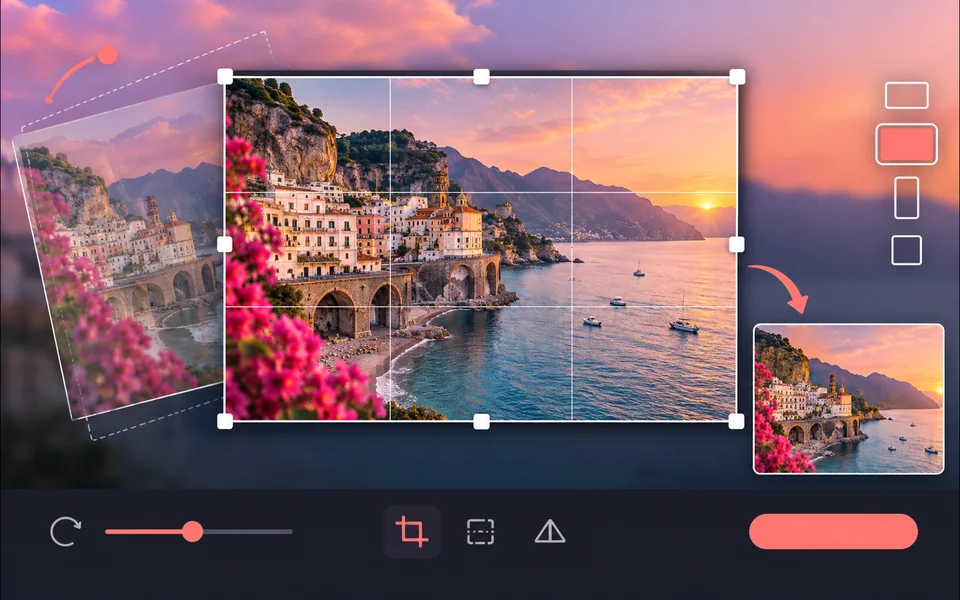
A suitable source
Add multiple images, then order, move, rotate, hide, lock, and fade each layer.
Design workflow
Arrange, hide, lock, reorder, and adjust the opacity of image layers.
This workflow runs in your browser and does not start a paid generation task.
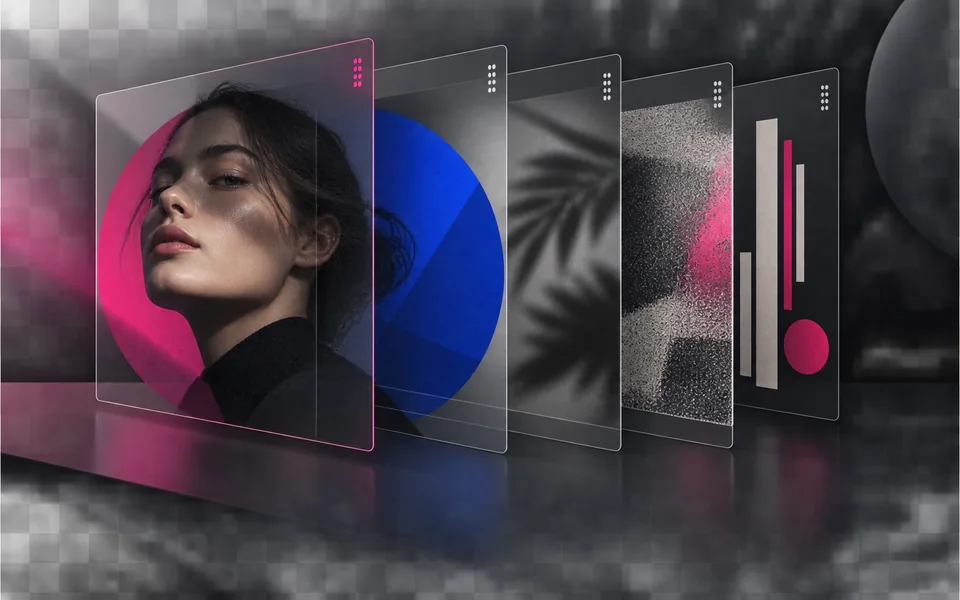
Site-owned example
Image Layers Editor example showing the intended workflow result
Controls that match the task
Only the inputs that affect this workflow are shown.
Clear before you run
Model, availability, limits, and paid cost stay visible.
A usable result
Preview the output, then download or continue editing.
Working area
Add multiple images, then order, move, rotate, hide, lock, and fade each layer. The result panel stays beside the controls on large screens and moves below them on smaller devices.
Image Layers Editor
Configure the input
Local previews and exports do not start a paid generation. Paid operations show their model and credit quote before submission.
Result preview
Inspect the output before downloading or continuing.
Upload your own file above. The workspace stays compact until an image is ready.
Designed around the result
Arrange, hide, lock, reorder, and adjust the opacity of image layers. The workflow is organized around a usable output, not a decorative demo.
Add multiple images, then order, move, rotate, hide, lock, and fade each layer.
Lock finished layers before adjusting another element to avoid accidental movement. Settings remain visible so the result can be repeated or adjusted.
A flattened composition exported from the visible layer stack.
A predictable workflow
Each stage answers a practical question before the next action is available, so you can spot a wrong input before spending time or credits.
Add multiple images, then order, move, rotate, hide, lock, and fade each layer.
Choose only the model, dimensions, mask, style, or layout controls relevant to this task.
Preview the local change before exporting; no paid generation is started.
Check edges, text, identity, product details, and output size, then download or move to the next editing tool.
Practical answers
Add multiple images, then order, move, rotate, hide, lock, and fade each layer.
No. This workflow performs its preview and export locally in your browser.
A flattened composition exported from the visible layer stack.
The exported image is flattened; keep source files if you expect to rebuild the composition later.
Keep creating
Ready when you are