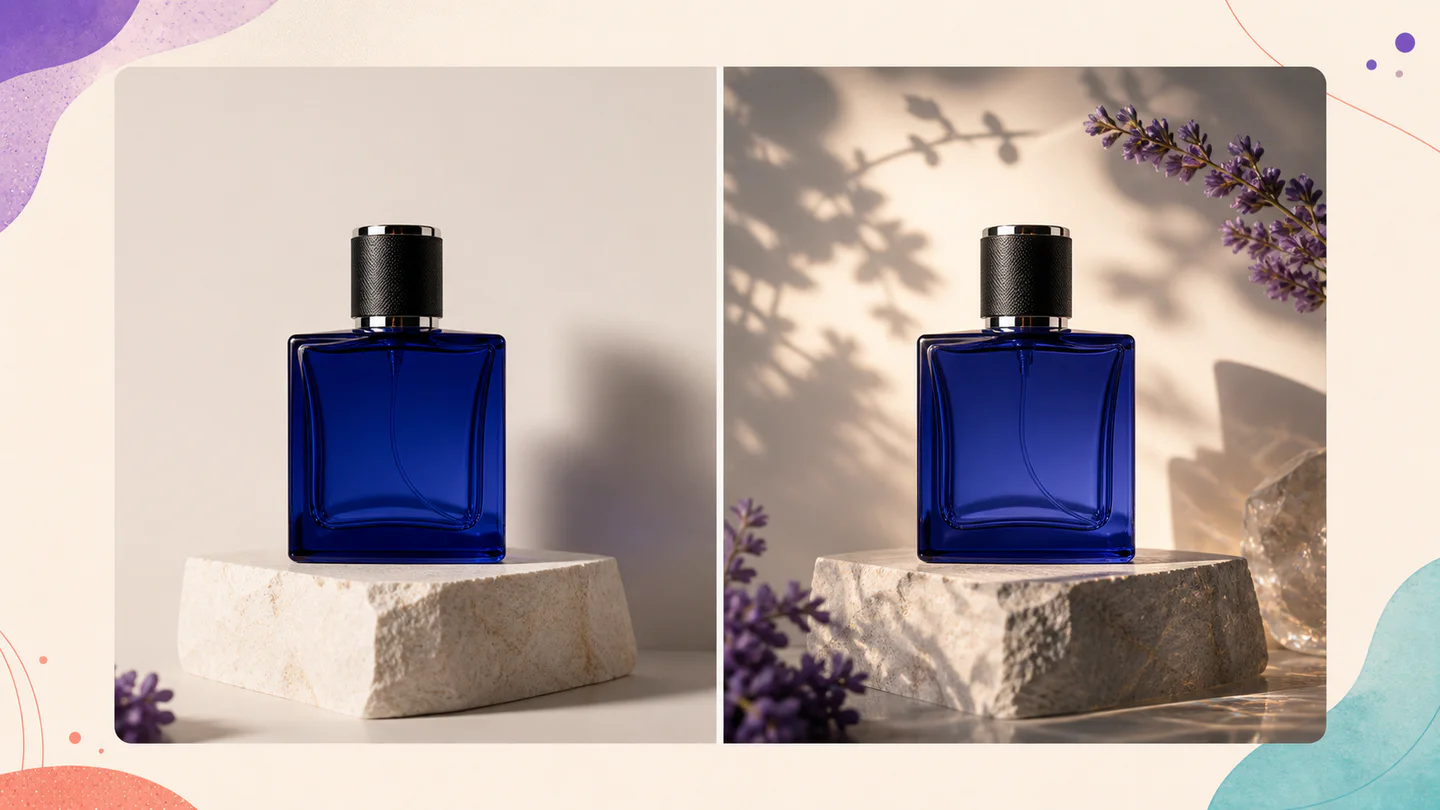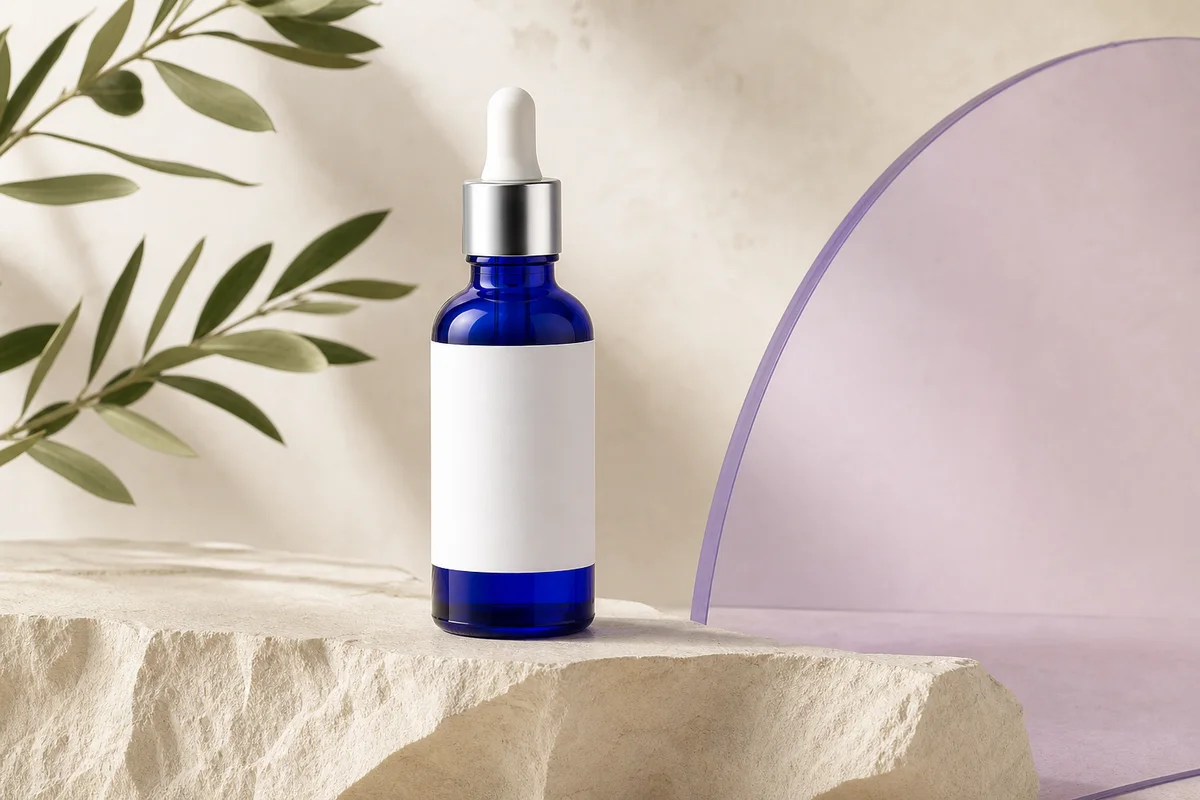
A model-specific brief
Write for high-detail campaign concepts and keep required text, identity, product, and composition constraints explicit.
Dedicated model workspace
Generate or edit detailed campaign images with rich prompt control.
The model identity and credit quote stay visible before submission.
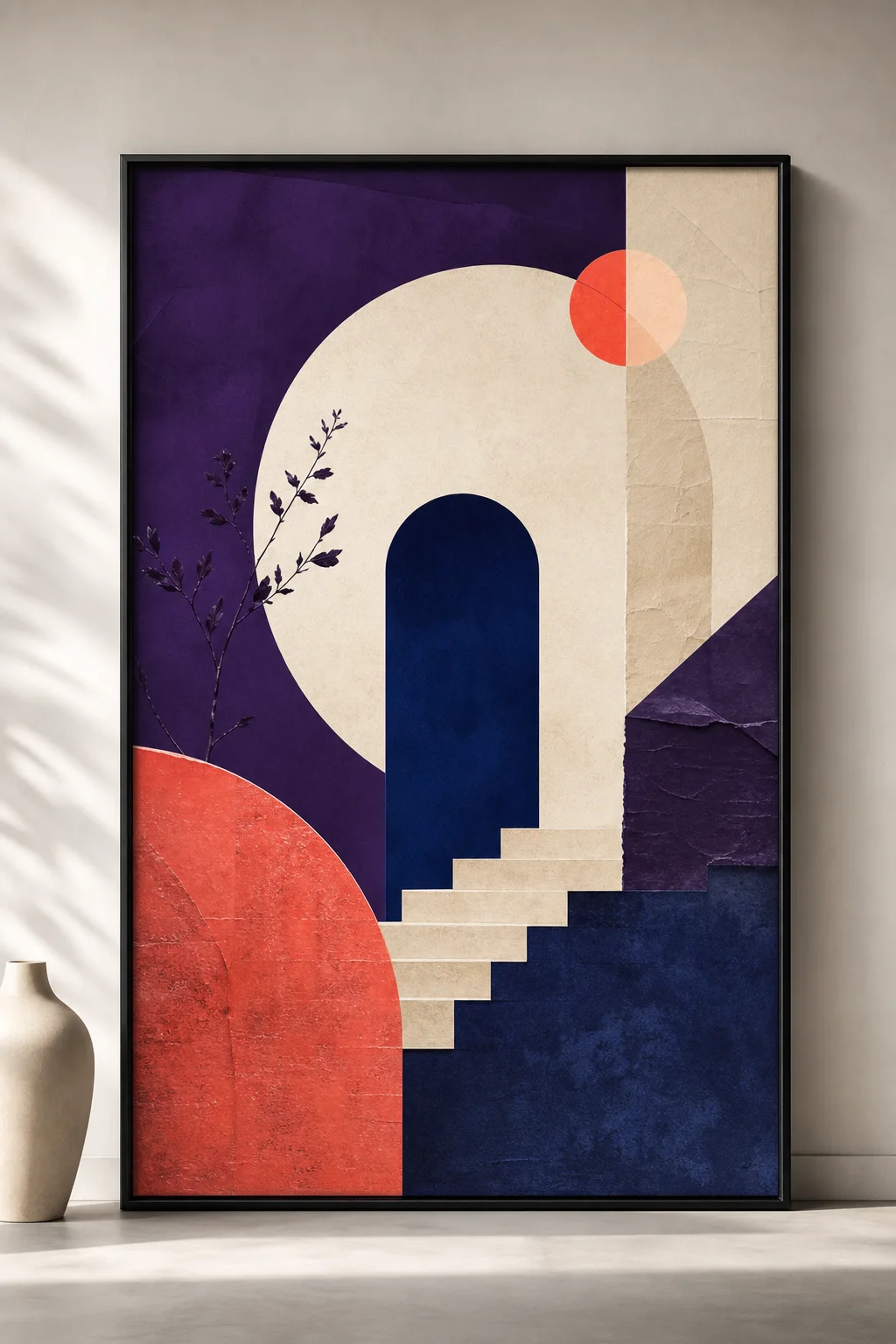
Model workflow example
GPT Image 2.5 Flare workflow example for high-detail campaign concepts
Controls that match the task
Only the inputs that affect this workflow are shown.
Clear before you run
Model, availability, limits, and paid cost stay visible.
A usable result
Preview the output, then download or continue editing.
Model controls
Choose the supported operation, add only the references the task needs, and review the exact model settings before running.
Step 01
GPT Image 2.5 Flare
Official provider identity
0/32,000
This page always submits to GPT Image 2.5 Flare. It never substitutes another model. Availability and billing are verified by the server before a task starts.
Step 02
Example · site-owned workflow illustration
High-detail campaign concepts. This illustration is not presented as a live output from this model.
Recipe: A refined launch campaign key visual with controlled typography-safe negative space.
mode: generate · ratio: 16:9 · quality: high
Designed around the result
The visible controls reflect the same model registry used by the server, so the page does not silently replace your model choice.
Write for high-detail campaign concepts and keep required text, identity, product, and composition constraints explicit.
Upload and order only the references that have a clear job. This configuration supports up to 16.
The submitted task keeps its model identity, status, and output together for review and download.
A predictable workflow
Each stage answers a practical question before the next action is available, so you can spot a wrong input before spending time or credits.
Available operations: generate + edit + replace background + relight + remove object + repaint + outpaint.
Lead with the subject and purpose, then add composition, light, style, and preservation requirements.
Choose from square_hd, landscape_4_3, landscape_16_9, portrait_4_3, portrait_16_9, auto and add no more than 16 references.
Confirm the model and credit quote, run the task, then inspect the result at full size.
Practical answers
High-detail campaign concepts
Yes. The configured workflow accepts up to 16 reference images, subject to the active provider contract.
No. Availability is checked for this model, and an unavailable model is shown as unavailable rather than silently replaced.
Check small text, hands, faces, logos, product geometry, material color, and any detail that must match a source image.
Keep creating
Ready when you are